
Create a Google Calendar Link for All of Your Course Assignments
1. Access the Canvas Calendar
- Log into Canvas and select the Calendar icon from the global navigation bar on the left.

2. Locate the Calendar Feed Link
- Ensure the relevant course (e.g., BT 101 in this example) is toggled on under the "Calendars" list on the right-hand sidebar.
- On the bottom right-hand side of the Calendar view, locate the button labeled Calendar Feed.
- Click this button to open the "Calendar Feed" dialogue box.

3. Copy the iCal URL
- A unique URL will appear in the pop-up window.
- Highlight and copy the entire link (it starts with
https://wts.instructure.com/feeds/calendars/...).
💡 Tip: This link is a permanent feed. Once added to a personal calendar, any updates made in Canvas will automatically sync to the external calendar (though sync frequency depends on the specific app, e.g., Google Calendar usually updates every 24 hours).

4. Import to Google Calendar
- Open Google Calendar.
-
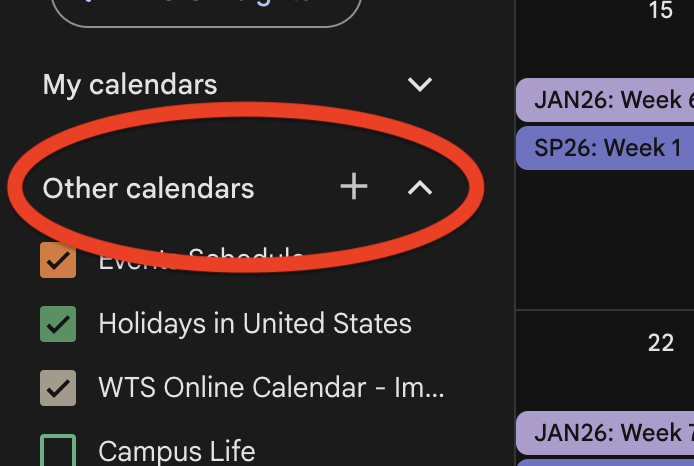
On the left sidebar, find "Other calendars" and click the + icon.
-
Select From URL.
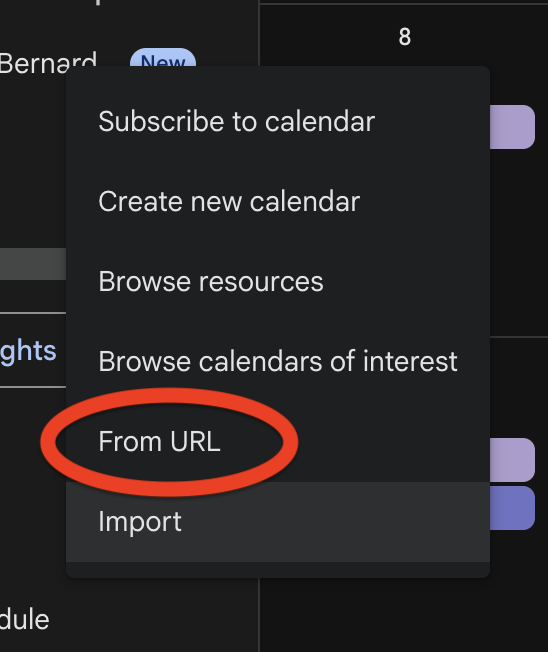
- Paste the link you copied from Canvas into the "URL of calendar" field.
- Click Add calendar.
