
Where is my course from a past term?
At the end of every term, courses are set to transitioned from the Canvas Dashboard (the main landing you first see when you sign on to Canvas) to the Past Enrollments section under "All Courses."
Courses are set to appear in the Canvas Dashboard from early access (1 week before the start of the term) and disappear at the end of a term in accordance with a student’s registration. However, students are still able to access all courses in which they have been enrolled by going to the All Courses page of Canvas.
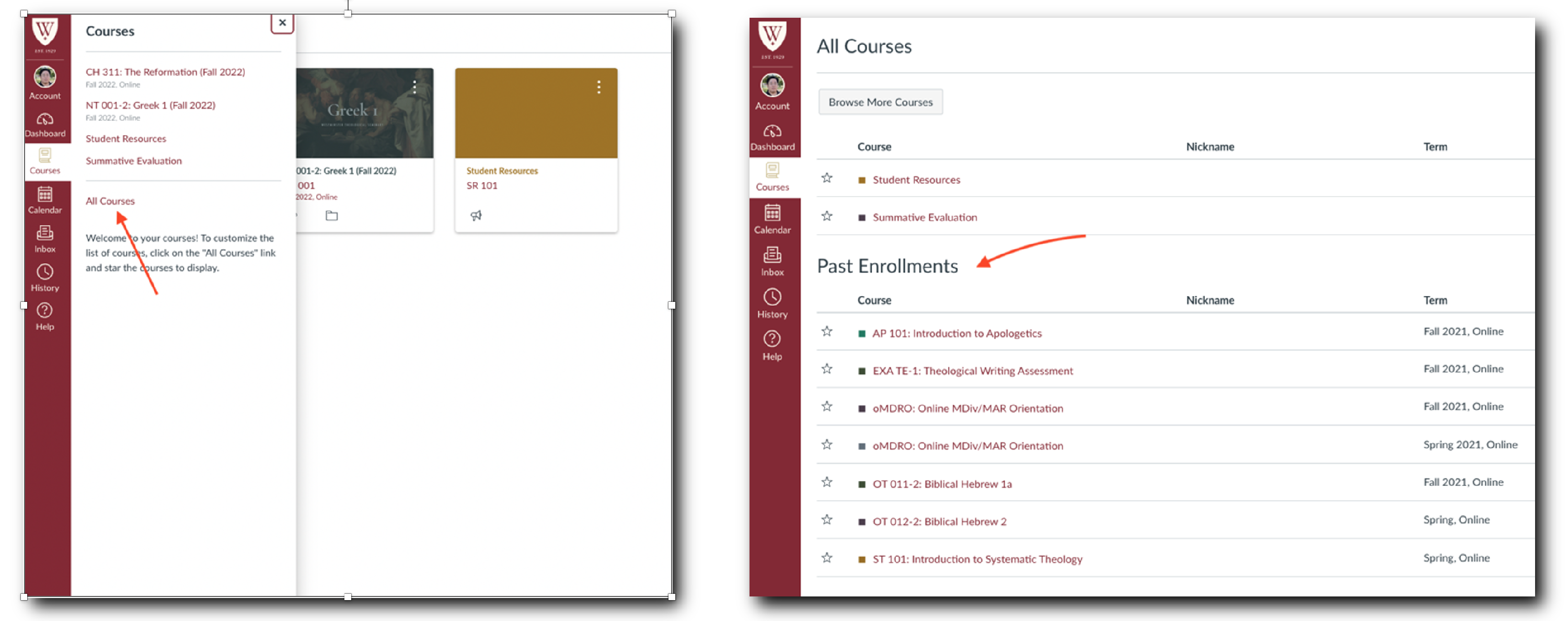
To get to the “All Courses” page of Canvas:
- Click on the “Courses” button in the left navigation pane.
- Then click on “All Courses.” This will show your current enrollments at the top of the page, Past Enrollments in the middle of the page, and Future Courses or My Groups on the bottom of the page.
- Locate the course under the Past Enrollments section. Under Past Enrollments, you will be able to find all of your courses in past term.
Please see the screen shots below for reference:
Notice: Please note that we are currently addressing some courses that have remained on student’s Canvas Dashboard as active courses though they are in past terms. For all courses that started September 1, 2022 and going forward, all courses will move from the Dashboard to the Past Enrollments at the end of the term.
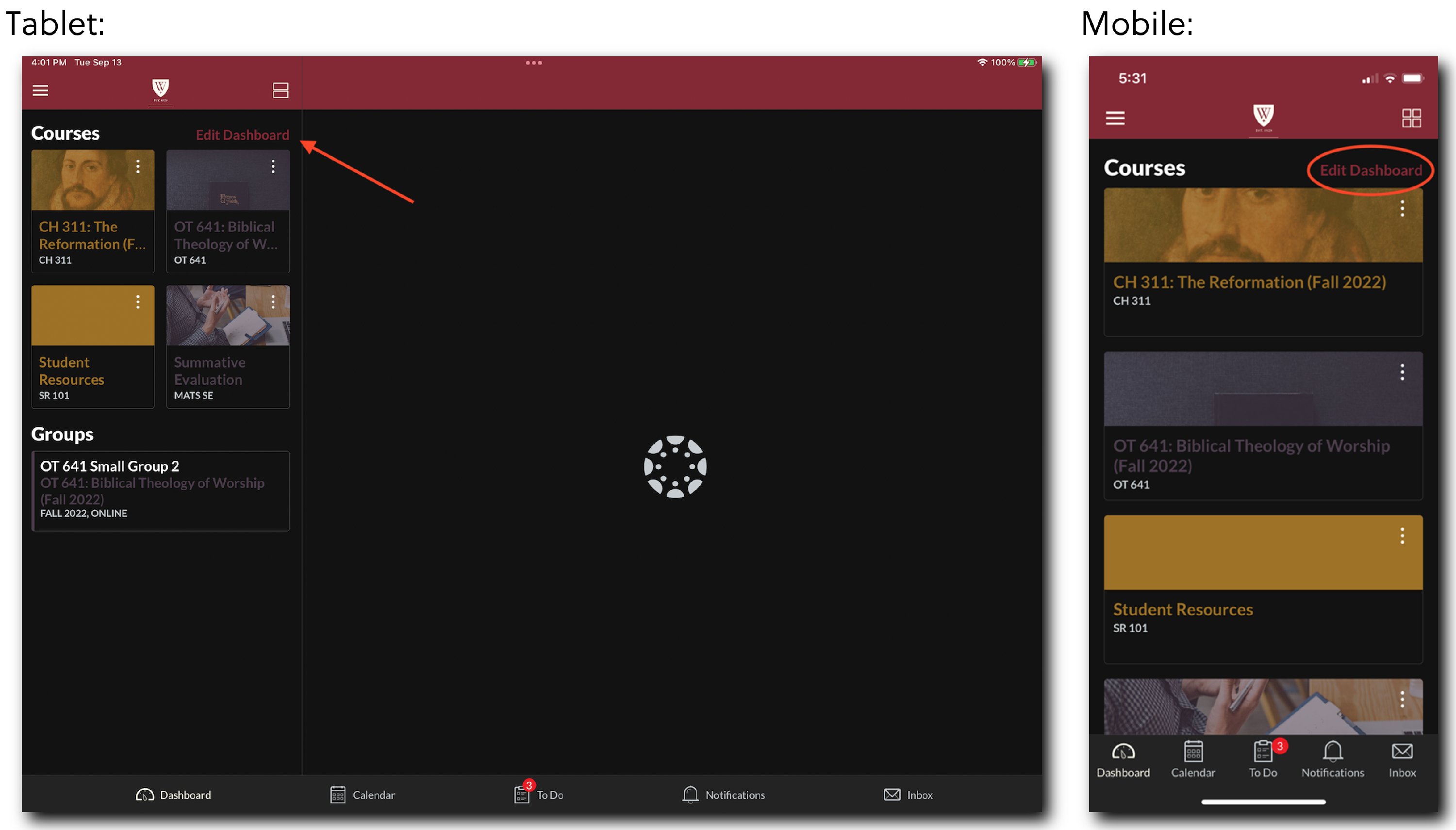
On the Canvas Mobile app, you can find the Past Enrollments section by clicking on “Edit Dashboard.” Please see the screen shot below for reference:
If you have any questions regarding courses, please reach out to support@wts.edu